
something different
about this SSH client…
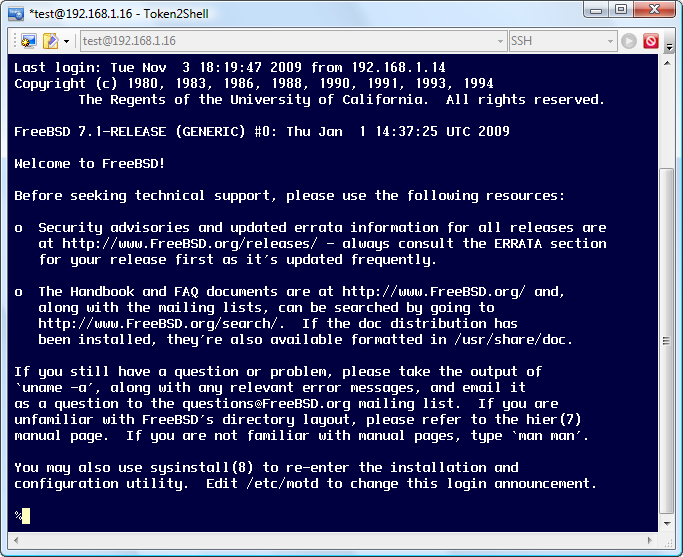
There are a lot of SSH clients available today. But have you seen an SSH client that goes beyond a terminal emulator? When you remotely manage a server, you need more than a shell prompt. Token2Shell includes various unique features that can actually help you make your remote access life easier. For example, it has an ultra-fast SSH remote copy function that is seamlessly integrated into each terminal session; when you need to upload a file, simply do drag-and-drop. Token2Shell automatically detects the directory path you were working on and upload the file to that directory.
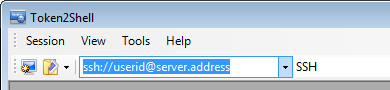
Comprehensive SSH Support
Token2Shell includes all the popular SSH options for both SSH1 and SSH2 protocol. If there is an SSH server, you shouldn’t have any problem logging in with Token2Shell.
|
SSH2
|
SSH1
Common Features
|
Along with robust SSH features, Token2Shell also supports TELNET, TCP Direct, Serial(COM) Port and Modem(Phone) connections.
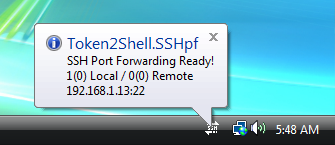
Token2Shell.SSHpf
Token2Shell includes a dedicated standalone application called “Token2Shell.SSHpf” for SSH tunneling. This application provides tunneling or port forwarding for other applications, and can be minimized to Taskbar’s tray icon area and run transparently in the background.
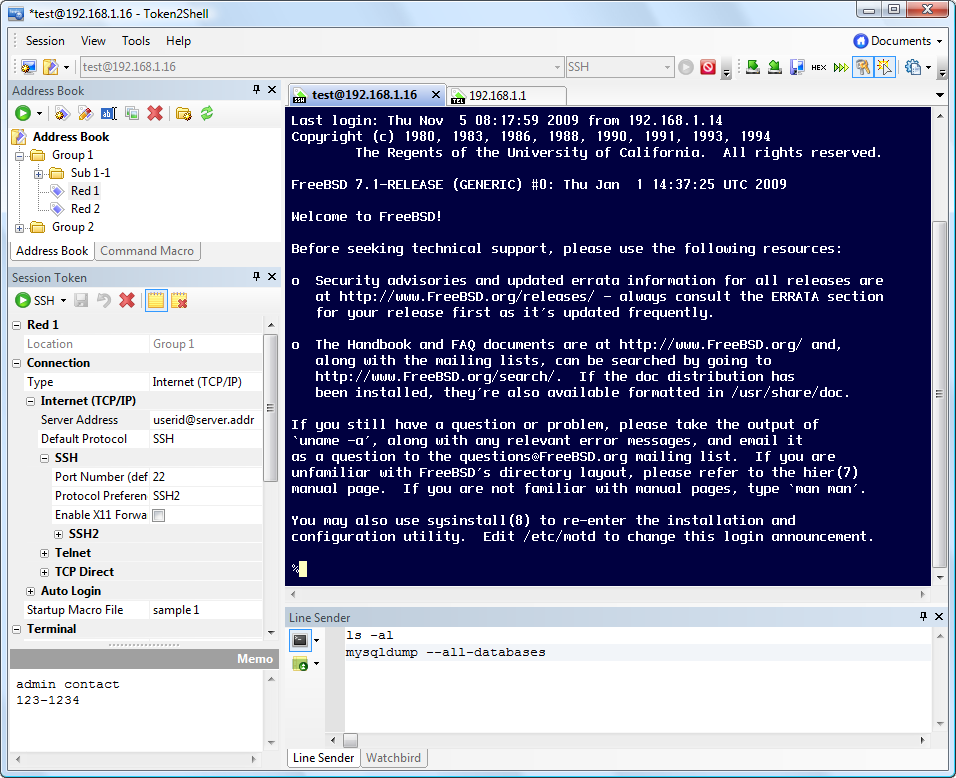
Simple Yet Flexible User Interface
Dockable Panes
Token2Shell utilizes dockable panes to allow the user to adjust the layouts of its major components such as address book and session configuration window. If you wish to have a simple clean look, you can remove all the toolbars and panes, and just have the address bar and session screen visible.
Detachable Session Tabs
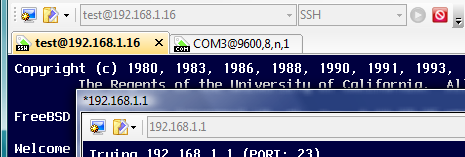
You can open multiple sessions within Token2Shell. Token2Shell assigns each of those sessions to a tab on the main window. Double-clicking on one of those tabs detaches its associated session screen.
A detached session screen behaves like a floating dockable pane; it can be docked or grouped together with other detached sessions. Also, unlike traditional multi-session programs where each session window cannot be placed outside of the main window, the floating session panes in Token2Shell can be placed anywhere on your desktop screen. If you wish to attach a session pane back to the main window, simply double-click on its pane title area.

Seamless Feature Integration
Features in Token2Shell are not just a collection of small utilities, they actually evolve around the communication session to help you efficiently accomplish your tasks.
Address Book
Token2Shell includes Address Book for saving session configurations. Configurable options for a session entry include detailed connection and terminal setup. You can even assign different font and foreground/background colors for each entry. You can also create folders to categorize or group the entries.
Login Agent
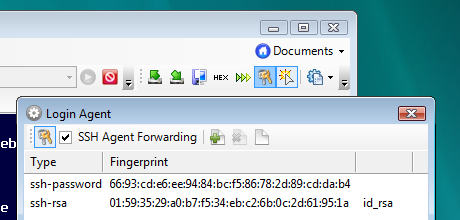
When Login Agent is enabled, Token2Shell caches passwords and decrypted private keys for SSH sessions. Hence, you do not need to enter your password repeatedly to log into the same server. For cached private keys, you can also enable “Agent Forwarding” option. This Agent Forwarding feature is compatible with OpenSSH “public-key” user authentication method.
SSH2 Remote Copy
Token2Shell has a unique file transfer feature for SSH2 connections. It incorporates SFTP and SCP of SSH2 protocol to maximize the file transfer speed while maintaining the convenience of choosing files and folders via graphical user interface.
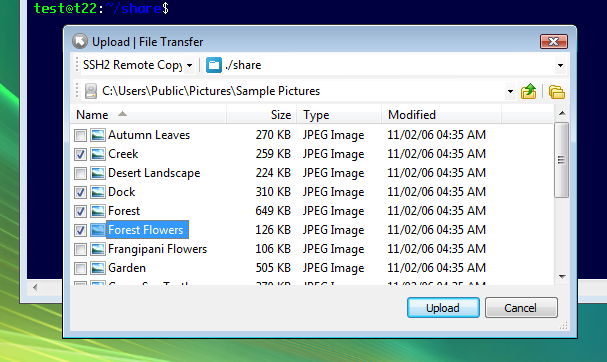
During an SSH session, if you need to upload a file or folder, simply drag-and-drop the item over the session screen. Token2Shell then automatically tries to detect the directory path of the remote host you were working on, and initializes the necessary upload settings. When Token2Shell shows the settings along with the drag-and-dropped items, you just need to press <Enter> or click “Upload” to start the transfer.
For downloading, pressing keyboard shortcut <Ctrl> + <Page Down> will bring up a file/folder selection window. Token2Shell will try to automatically detect the remote directory path you were working on and list the files and folders of that directory. You then just need to choose the files and/or folders you wish to download from the list, and press <Enter> or click “Download“.
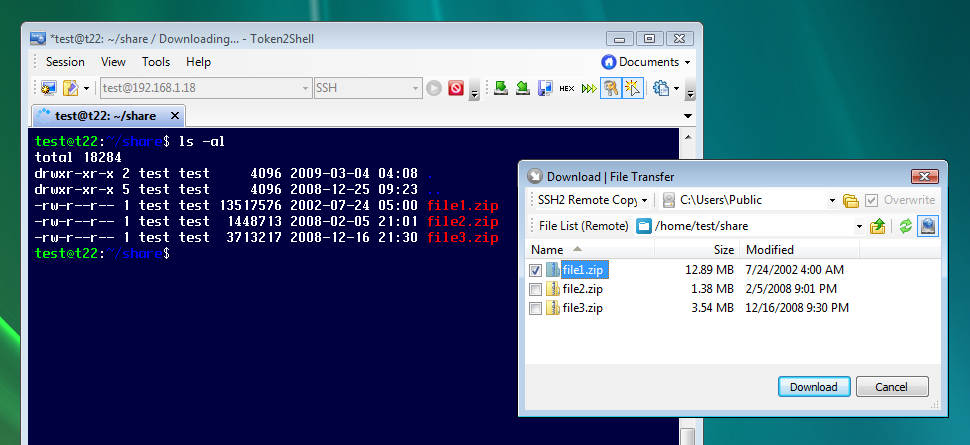
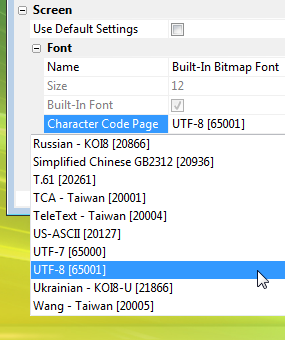
SSH2 Remote Copy uses already established connection; hence you do not need to worry about making additional connections or entering your password again for the file transfer operation. Also, as the file transfer is done over the existing session, Token2Shell intelligently maintains the character code encoding for file/folder names between the local desktop and the remote host. For example, if you have a local file name in Unicode/Korean characters and the remote host uses EUC-KR double-byte character encoding, simply make sure you have set the character code page for the session as “EUC-Korean” or “ANSI/OEM ?Korean“. Token2Shell will then automatically convert the names when you download or upload files.
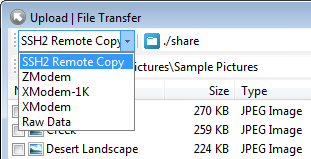
Token2Shell also supports traditional file transfer protocols such as ZModem and XModem.
Backup, Restore, Share Your Settings Effortlessly
Home Folder
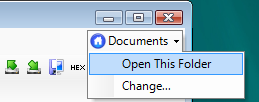
Token2Shell reads and writes all of its essential settings including address book entries under the “Home Folder” of your choosing. So if you wish to make a backup or transfer your current settings to a new computer, simply copy your current home folder.
You can even have multiple home folders on your computer. For example, you can have a read-only home folder that is shared over network among team members for accessing common servers, and another one on your local disk for your own needs. To access each home folder, you can use the toolbar button or create separate shortcuts to Token2Shell with each shortcut having the path of the home folder as its command line argument.
Token2Shell stores its settings in plain text and manages them in small files. This approach ensures strong protection against data corruption and disk failures. It also enables you to utilize other existing tools. For example, if you have hundreds and thousands of address book entries and need to find one particular entry, simply do a Windows?file search on your home folder. Once found, double-click the file, Token2Shell will then start a session according to the address book entry.
Jump-point
Starting from version 6, Token2Shell supports “Jump-point” connections. Jump-point is a unique feature supported in our Ch1.Gateway server. As Token2Shell connects to Ch1.Gateway via SSH and requests a jump-point, Ch1.Gateway transparently relays data traffics from the target server. Since Ch1.Gateway supports all the connection methods found in Token2Shell, you can even access serial port and modem connected device over SSH.
By utilizing jump-points, you can minimize the risk of exposing important server administration information while achieving the flexibility of managing servers and network equipments from anywhere!
Convenient Built-In Tools
Command Macro
You can prepare a text file with list of command lines and play the file via Token2Shell. The connected remote system will see the played file as command lines that were typed and sent by you. Token2Shell also supports a set of wait/send style script commands.
Line Sender
If the connection is slow or you need to send the same set of commands repeatedly, Line Sender can be a handy tool. In Line Sender pane, each line is sent to the currently selected session as you press <Enter>. You can also set the Line Sender to broadcast the text line to all connected sessions.
Slow Paste
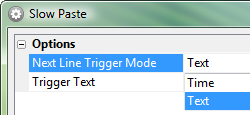
When you do a Slow Paste in Token2Shell, Token2Shell sends the clipboard-stored text line by line at a preconfigured interval. The interval can be a fixed amount of time or triggering text. For example, if you set the interval mode to ‘Time’ and enter ’2000′ for ‘Line Sending Interval‘, Token2Shell sends each line and pause for 2 seconds before sending the next one. If you set the mode to ‘Text’ and enter ‘myserver command prompt %‘ for ‘Trigger Text‘, Token2Shell will only send the next line when it sees that text from the server response.
This feature should be handy when you need to cut and paste configuration command lines where each line should be sent only after the previous line is fully processed by the remote system.
HEX Mode
When HEX Mode is enabled, received communication data are displayed in their HEX values. This feature is useful in studying or debugging the communication protocol your server or device uses.
Watchbird
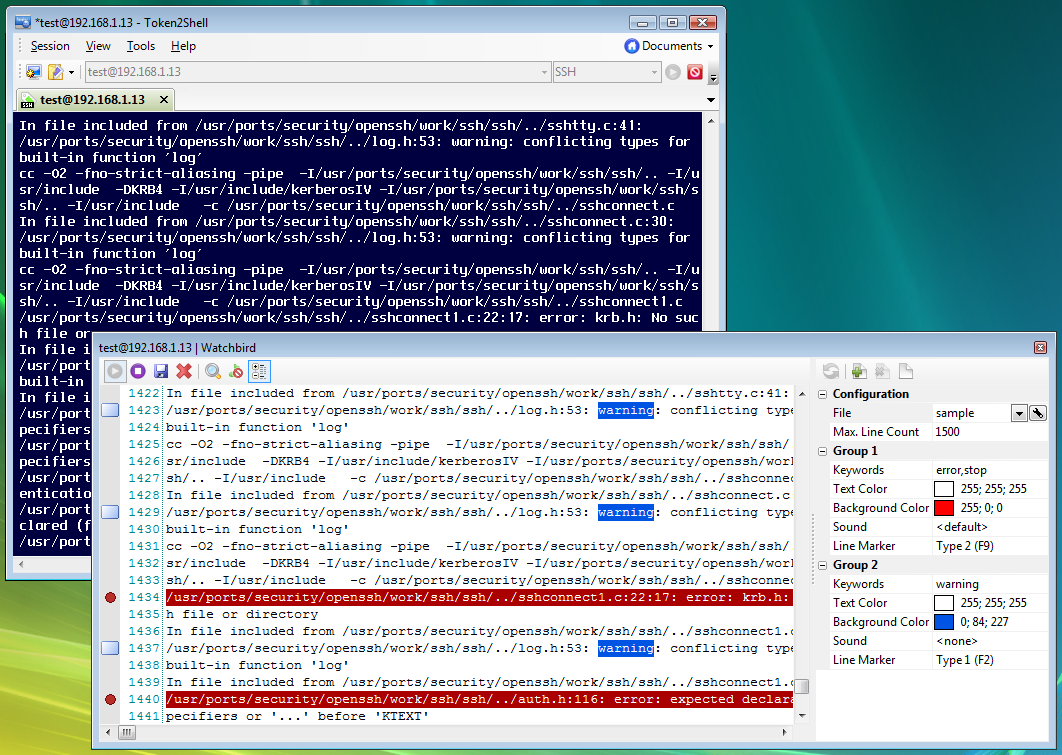
When Watchbird is enabled, Token2Shell captures incoming data on a built-in text editor and highlights the keywords you have setup. When a keyword is found, you can also configure Token2Shell to bookmark the line with the keyword, or play a sound.
Mobile Ready!
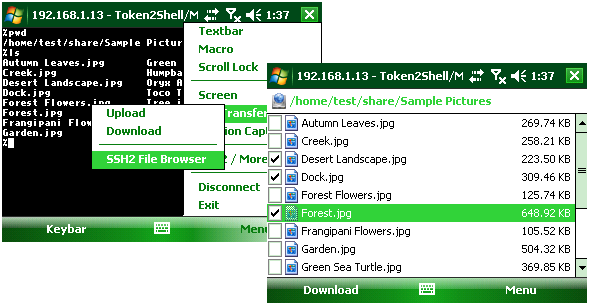
When you need to go mobile with your Windows phone, simply copy the home data folder of Token2Shell to your mobile device and launch Token2Shell/Mobile for Windows Mobile. Token2Shell/Mobile supports all flavors of Windows Mobile (Professional/Classic/Standard) and shares a large part of the configuration settings such as address book entries, command macro and etc.
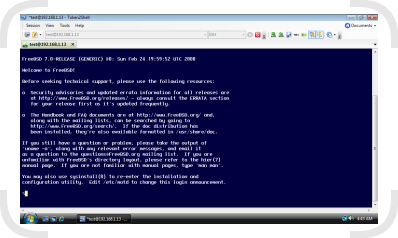
If you have a Windows laptop with a small screen, the full screen mode of Token2Shell can be handy. In this mode, unlike the usual “maximized” window mode, all screen elements such as window title, toolbars and even the Windows taskbar are hidden. Only the selected session window is visible. In order to trigger the full screen mode on or off, you can select “Full Screen” from the right-click pop-up menu, or press <Alt> + <Enter>.
Maximized Window Mode
Full Screen Mode