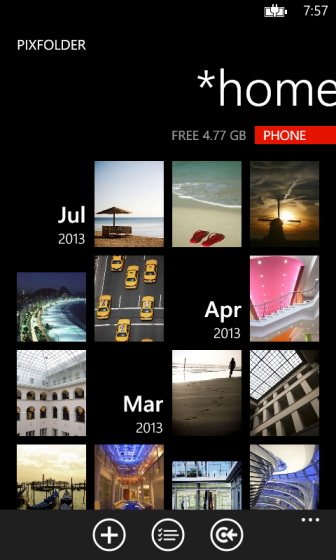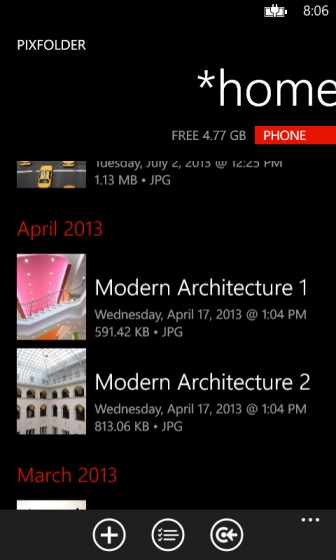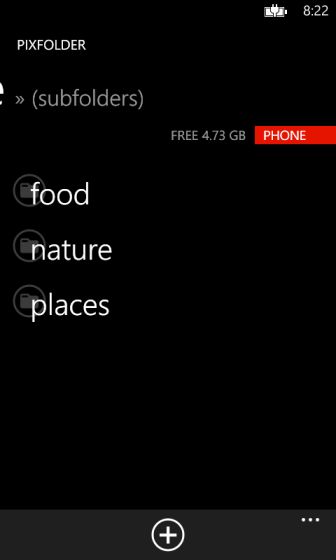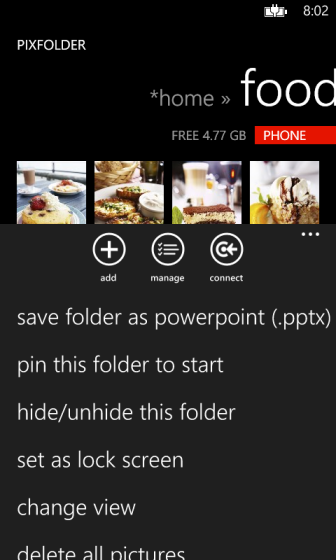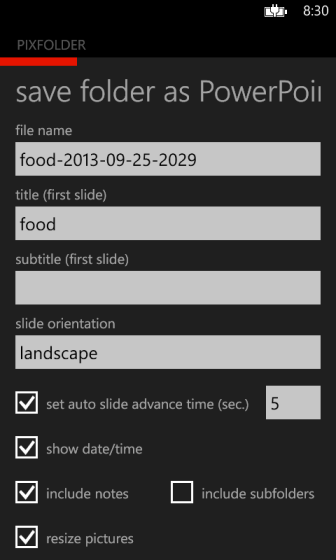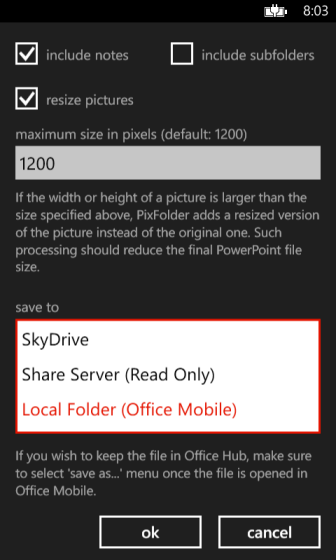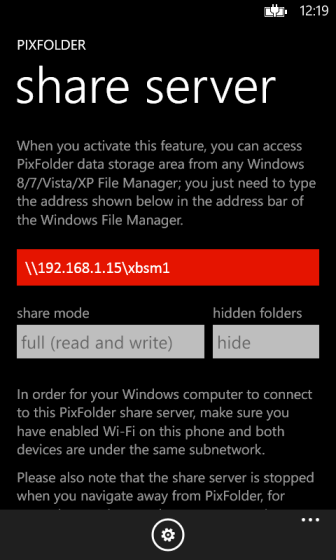
Took countless awesome pictures with your Windows Phone? You can now organize them in subfolders with PixFolder!
Have some private photos? Instead of storing them in a separate special app with pin numbers and make others more curious, simply move them to a folder in PixFolder and hide that folder in plain sight! Once hidden, you can only access that folder by entering its name; it will not be shown on available subfolder list.
PixFolder also supports turning your Windows Phone into a file server. When PixFolder Share Server is activated, you can wirelessly access your photos from any Windows PC using Windows file manager just like files from network shared folders. You don't need to install any special software or use a USB cable!
ADDITIONAL FEATURE HIGHLIGHTS
- Add notes to your photos.
- Create PowerPoint photo slideshows.
- Pin your photos as Live Tiles.
- Have your lock screen background image changed
automatically with your photos.
How To's
ACCESSING AND CREATING SUBFOLDERS
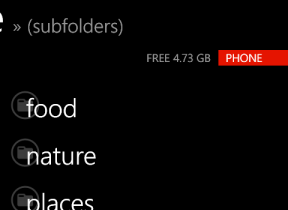
Swiping to left reveals a subfolder listing. In this pane, you can move into one of the listed folders or create a new one.
If you wish to move out of the current folder, swipe to right from the pictures pane. You can also change the current folder by tapping the folder path header.
HIDING A FOLDER
You can hide a folder and prevent others from accidentally viewing your pictures. In order to hide a folder, simply go to the folder and select "hide/unhide this folder" menu. You can also hide a folder by selecting "hide" from the folder popup menu.
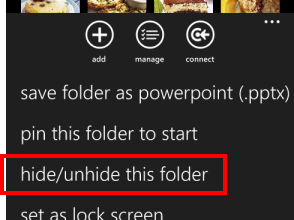
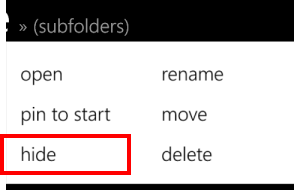
In order to access a hidden folder, go to the parent folder of the hidden folder and use "open folder" menu on folder listing pane.

SAVE FOLDER AS POWERPOINT SLIDESHOW (.PPTX)
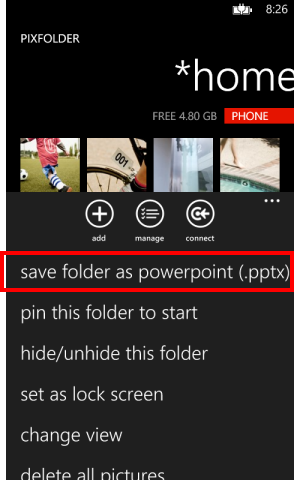
PixFolder supports creating a Microsoft PowerPoint slideshow (.pptx) with your pictures. Simply go to the subfolder where your pictures are, or select pictures you want to create as a PowerPoint slideshow, and tap save as PowerPoint menu. Your PowerPoint slideshow can directly be opened from Microsoft PowerPoint Mobile built into Windows Phone, or uploaded to SkyDrive.
Don't have PowerPoint? No problem! You can view or print PowerPoint slideshow created in PixFolder with the free PowerPoint viewer from Microsoft. You can download the viewer from the following Web site:

PIXFOLDER AND SKYDRIVE

PixFolder seamlessly integrates SkyDrive. When you save pictures as a PowerPoint slideshow (.pptx), you can either choose to open it locally with Microsoft PowerPoint Mobile built into Windows Phone or upload it to SkyDrive. For SkyDrive, you also have an option to get a shared link for the uploaded file. Your friends and colleagues can easily access the file using the provided shared link.
Please note that if you already have a file with the same name as the uploading file, it will be overwritten. However, if a shared link was already issued for the existing file, it can still be used for accessing the newly uploaded file. If you wish to change its access permissions or invalidate the issued shared link, please use SkyDrive management Web site.
For more information about SkyDrive, please visit http://explore.live.com/skydrive.
NOTES
- When you pin a folder to Start screen, PixFolder periodically and randomly selects photos from that folder and assigns them to the folder Tile.
- When you pin a photo to Start screen but selects 3 or more photos, PixFolder creates a "wide" Live Tile showing first 9 of those photos.
- Hold gesture on a folder name in subfolder listing pane brings up a popup menu for additional folder related tasks such as "move", "delete" and etc.
- Full screen mode on photo/subfolder listing pane can be toggled on/off by two-finger tap gesture.
- Starting from version 3.0.0, PixFolder no longer depends on Hann Portable Server for backup and restore tasks. For such tasks, you can now simply activate PixFolder Share Server and copy files directly from any Windows 8/7/Vista/XP File Manager.