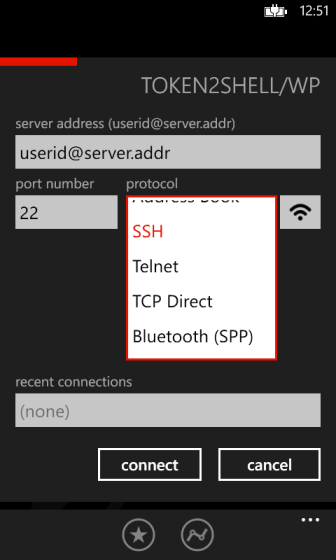
Start Token2Shell/WP and turn your Windows Phone into a powerful SSH client for accessing and managing your servers from anywhere!
FEATURE HIGHLIGHTS
- Supports SSH2 and TELNET protocols.
- Supports connecting directly to TCP sockets without applying any protocol specification (TCP Direct).
- Supports connecting to Bluetooth devices using Serial Port Profile (SPP).
- Supports XTerm/ANSI/VT100/VT102/VT52 terminal emulations.
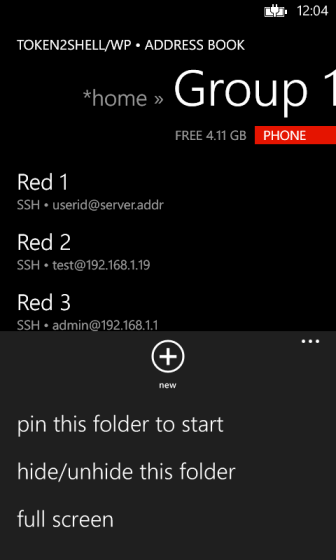
- Includes Address Book for managing servers and setting up Auto Login.
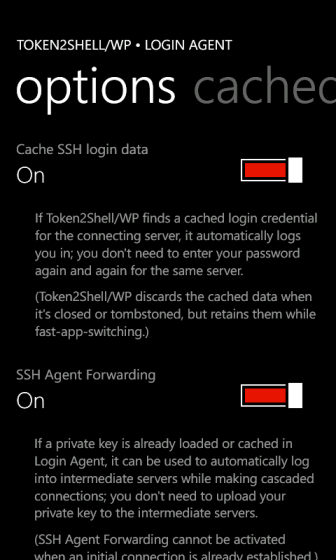
- Includes Login Agent for SSH sessions; when it's enabled you don't need to enter your password repeatedly to log into the same server. Login Agent caches login credentials and discards them when Token2Shell/WP is closed or tombstoned (but they are retained while fast-app-switching).
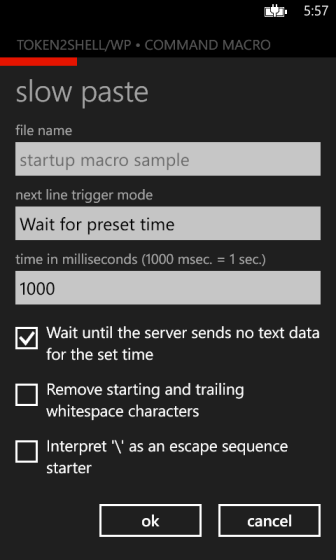
- Supports Command Macro; you can use the same set of commands supported in Token2Shell for Windows and create simple send/wait type script files.
- Supports barcode scanning using phone's built-in camera.
- Supports RSA/DSA public key user authentication and Agent Forwarding for SSH connections.
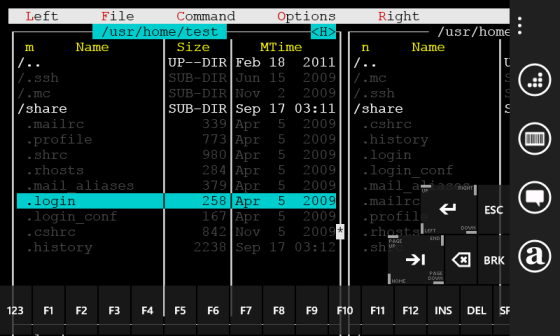
- Includes a translucent virtual keyboard for entering special keys such as ESC, TAB and function keys.
- ENTER and TAB buttons on Token2Shell/WP virtual keyboard support 4-way press-and-move gestures for entering arrow keys and HOME/END/PAGE-UP/PAGE-DOWN keys.
- Tapping gesture is translated to single/double left mouse clicking in XTerm emulation mode.
- Supports single character input mode for entering individual characters and control key combinations.
- Includes "Line Sender" for composing text before sending it to server.
- Supports pinch-to-zoom and panning for terminal screen.
- Supports both portrait and landscape orientations.
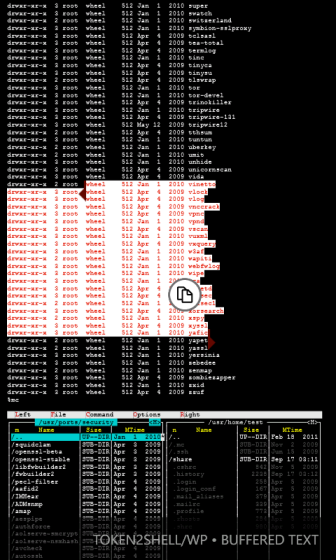
- Supports viewing buffered previous text.
- Supports Western/Central European (Windows-1252/1250), US/Extended ASCII (DOS/CP437), and UTF-8 character code pages.
- Seamlessly import address book entries, private keys and other essential settings from Token2Shell for Windows.
SUPPORTED SSH2 FEATURES
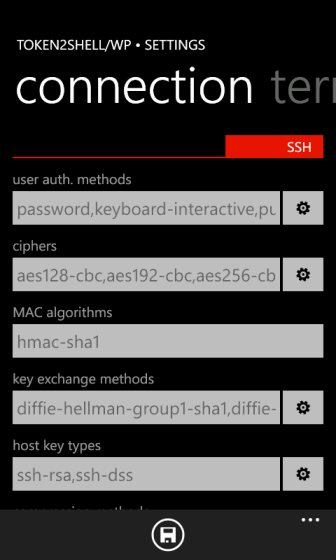
- Authentication Methods
Password, Keyboard-Interactive, Public Key - Ciphers
AES (256/192/128 Bits) - MAC(Message Authentication Code) Algorithms
SHA1 - Key Exchange Methods
diffie-hellman-group1-sha1, diffie-hellman-group14-sha1,
diffie-hellman-group-exchange-sha1 - Hostkey Types
RSA, DSA - Data Compression
none, zlib
BARCODE SCANNING
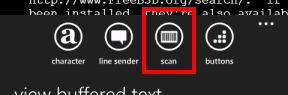
Token2Shell/WP supports barcode scanning using phone's built-in camera. You can use the barcode scanning feature while connected to a server for sending barcode text data. They are sent as if they were typed from a keyboard. You can also use the barcode scanning while entering login information for SSH sessions.
The following lists the barcode types currently supported in Token2Shell/WP:
|
• UPC-A/E • EAN-8/13 • CODE-39/93/128 |
• ITF (I-2/5) • CODABAR • GS1 DATABAR (RSS) |
• QR CODE • DATA MATRIX |
Once you start barcode scanning during a session, you can use the hardware camera shutter button to start a new scanning. (During the scanning, pressing the camera shutter button changes flash mode.)
However, when the session is closed, the camera shutter button returns to its normal usage; it starts phone's camera app.
How To's
4-WAY PRESS-AND-MOVE GESTURES
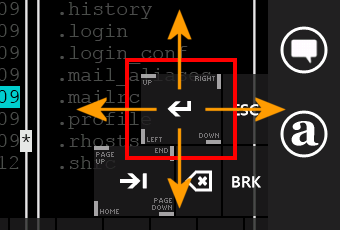
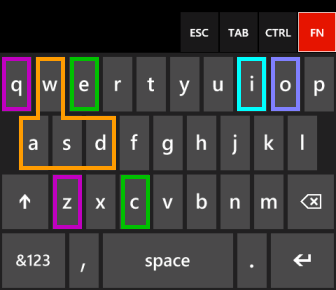
Token2Shell/WP includes a translucent keyboard for sending key strokes that cannot be entered from Windows Phone's built-in keyboard such as ESC and TAB. The translucent keyboard also supports entering arrow keys and HOME/END/PAGE-UP/PAGE-DOWN keys by using 4-way press-and-move gestures.
A 4-way gesture starts with pressing the center of the assigned button and then making a move in one of the 4 directions; left, right, up or down. ENTER button is assigned for arrow keys, and TAB button is assigned for HOME/END/PAGE-UP/PAGE-DOWN keys. Without the movement, the assigned button acts like a normal button.
 |
|
||||||||||||||||||||
 |
|
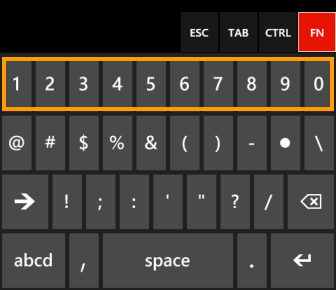
USING 'FN' BUTTON
While in single character input mode, you can use the 'FN' button for entering special keys such as arrow keys without closing on-screen keyboard.
CHANGING TERMINAL ANSWERBACK TEXT
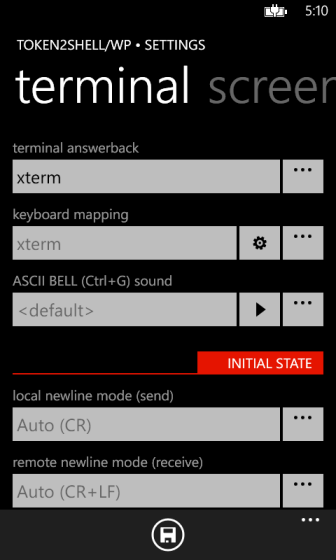
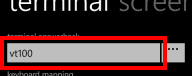
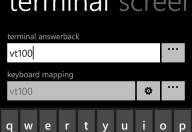
When Token2Shell/WP connects to a server, it sends a terminal identification text. The server then starts a terminal session according to the text. This identification text is commonly referred to as a terminal answerback string or TERM variable.
Token2Shell/WP includes commonly used identification strings that are also supported by Token2Shell/WP. If you wish to select one from this list, tap the expand button located next to the edit box.
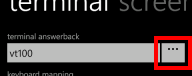
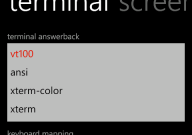
If you need to enter a custom terminal answerback text, simply tap the edit box and enter the identification text of your choosing.
COLOR SELECTION
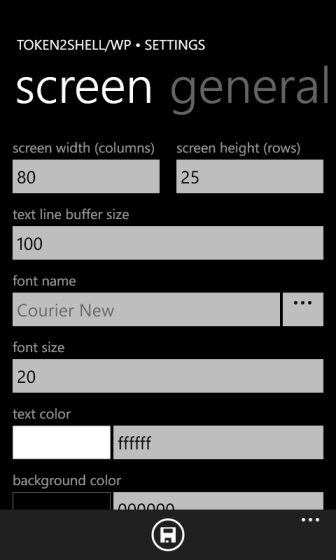
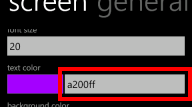
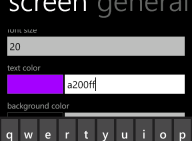
Token2Shell/WP supports customizable text and background colors. If you wish to change the color, you can select one from a list of pre-configured colors by tapping the current color block.
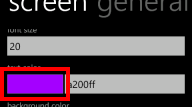
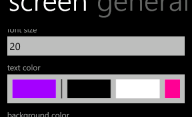
If you wish to use a custom color, tap the edit box next to the current color block that shows the RGB value of the current color, and then enter your own. The format of a RGB color value used in Token2Shell/WP is the same as the one used in HTML. For additional information about the format, please visit http://en.wikipedia.org/wiki/Web_colors#Hex_triplet.
SHARE SERVER
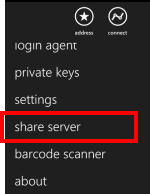
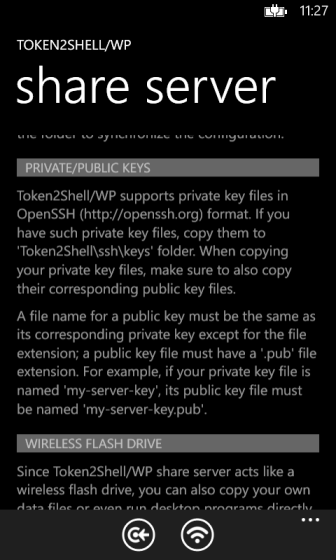
Token2Shell/WP incorporates FileTr2 share server engine and allows wirelessly accessing its data storage area. When you need to backup or restore address book entries and settings, or upload private key files for user authentications, simply start the share server and copy files via Windows File Manager.
Token2Shell/WP share server acts like a wireless flash drive, hence you can also copy your own data files or even run desktop programs directly off your Windows Phone.
IMPORTING PRIVATE KEYS
Token2Shell/WP supports RSA/DSA private key files in OpenSSH (http://openssh.org) format. If you have such private key files, copy them to 'Token2Shell\ssh\keys' folder once you're connected to Token2Shell/WP share server. When copying your private key files, make sure to also copy their corresponding public key files.
A public key file name must be set according to its corresponding private key file name; you must append ".pub" to a private key file name for its corresponding public key file. For example, if your private key file is named "my-server-key", its public key file must be named "my-server-key.pub".
You can also add a private key by using 'add via clipboard' menu. When this method is used, Token2Shell/WP generates a paired public key from the private key data you entered.
IMPORTING HOME FOLDER
Token2Shell/WP supports using address book entries, RSA/DSA private keys, keyboard mappings and other essential configuration files from Token2Shell for Windows. So, if you're already a Token2Shell for Windows user, simply copy back and forth the Home Folder to synchronize the configuration.
However, please note that if you edit an address book entry that was created in Token2Shell for Windows, some settings may get lost as Token2Shell/WP does not support the same set of options.
IN-APP TOOLS SUITE
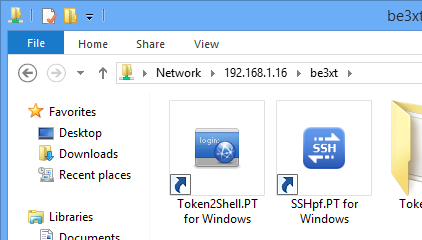
Token2Shell/WP includes the following in-app tools for Windows 8/7/Vista/XP. You can purchase and use these tools when Token2Shell/WP share server is active.
- Token2Shell/PT for Windows 8/7/Vista/XP
This is a portable version of Token2Shell for Windows. It shares the same address book entries and other essential settings with Token2Shell/WP.
- SSHpf/PT for Windows 8/7/Vista/XP
This is a portable version of Token2Shell.SSHpf that is included with Token2Shell for Windows. It provides SSH port forwarding for Windows 8/7/Vista/XP.
NOTES
- Full screen mode on Address Book file/subfolder listing pane can be toggled on/off by two-finger tap gesture.
- Single character input mode may not work with some language keyboard layouts such as Chinese/Japanese/Korean. In such case, please use "Line Sender" to compose text before sending it to the server.
- Due to Windows Phone OS app management policies, Token2Shell/WP will lose its connection to the server when it's pushed back and another app is launched or activated.
- In order to minimize external dependencies, Token2Shell/WP utilizes AES, RSA and SHA1 functions already built into Windows Phone OS.